
Message Review Notification
The Message Review Notification emails replace the Daily Email Security Reports by providing a more interactive and efficient way to review quarantined messages through a single-click link to the quarantine, addressing limitations of static email reports and offering clearer insights into suspicious emails.
In this article
- 1.Why is the report being replaced?
- 2.What do the Message Review Notification emails look like?
- 3.Why are my quarantined emails not listed in this notification?
- 4.Can I still receive the Daily Email Security Report instead?
Message Review Notification emails are the replacement for Daily Email Security Reports.
Why is the report being replaced?
Feedback over the past couple of years has shown you want more capabilities to be available from the Security Report. Unfortunately, emails are not interactive technology which severely limits what is possible in the Report.
Seeing a preview of a message in the quarantine, receiving more frequent reports, and offering clues to why an email is suspicious were difficult, if not impossible, to present in an emailed report. The Message Review Notification provides a single-click path to your quarantine that shows you the relevant messages you need to review and quickly get back to your other tasks.
What do the Message Review Notification emails look like?
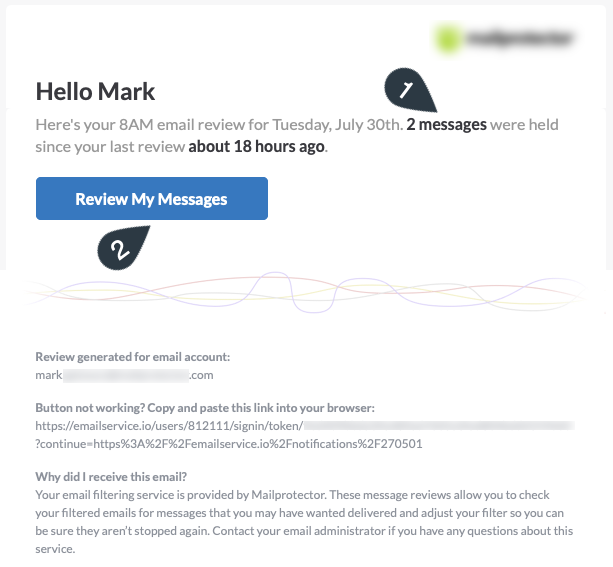
The notification email will tell you the number of messages you have to review. The number of messages will continue to increase if you do not review the messages and more are quarantined between notification emails.
Stamp 1 points to the headline indicating how many messages you have waiting to be reviewed.
Stamp 2 indicates the button to click that will open your browser and drop you into the quarantine message review. No username or password required.
Why are my quarantined emails not listed in this notification?
It can be convenient for the email to list the messages sitting in your quarantine but there are severe limitations to continuing with that method.
- To make the emailed report manageable, the number of emails listed had to be controlled. If you had 100 messages in the quarantine, your report would not have all of them. The email wouldn't be very useful with such an overwhelming list.
- Although you were able to release an email from the report, the process ultimately opened a web browser to confirm the release and ask if you always want to receive emails from that sender.
- Previewing the contents of a quarantined email is not possible from a report. The report cannot be interactive and "load" the preview in your email client. A preview needs to be seen in a web browser.
In the end, to provide all the features and improvements we have collected over the years, the process had to happen in a way that allowed you to interact with all the information. A web application is a natural fit to work across all the ways you use email - at your computer, on your smartphone, a tablet, and maybe even something we haven't thought of yet.
Can I still receive the Daily Email Security Report instead?
Unfortunately, no. That will not be an option.
We know change can be difficult and even feel very disruptive. A good deal of thought was put into this new process and we'd like you to give it a chance. After a few days, we're pretty confident you'll find all the improvements are worth the change.
The original image is available below for downloading and repurposing in your own documentation.
Updated 7 years ago
Previous article
Google Workspace Outbound Mail Routes
Next article
Was this article helpful?
0 out of 0 found this helpful
YesNo
Can't find what you're looking for?
9nnyrv9n9w9k.statuspage.io
9nnyrv9n9w9k.statuspage.io is blocked
This page has been blocked by an extension
- Try disabling your extensions.
ERR_BLOCKED_BY_CLIENT
Reload
This page has been blocked by an extension
<% if (previousArticle || nextArticle) { %>
<% if (previousArticle) { %>
Previous article
<% } %> <% if (nextArticle) { %>
Next article
<% } %>
<% } %>